Contract Approval Workflow | Customer and Vendor Contract Management, Renewal and Expiry
by XFanis
/ version
Price breakdown
Official Odoo store · pay by card
Used by
Contract Approval Workflow | Customer and Vendor Contract Management, Renewal and Expiry for Odoo
Customer and vendor contracts in Odoo: contract approval workflow by approval teams with amount limits, contract renewal reminders and contract expiry reminders, invoices and vendor bills from the contract lines.
Using approved/validated contracts to control creation of customer invoices and vendor bills.
Key Features:
- Validating contract with or without approval process
- Using teams to organize approval workflow for contracts
- Unlimited steps/levels of contract approval with email notifications
- Using contracts to create contract more quickly
- Using contracts as template of customer invoices or vendor bills
- Contract lines with subtotals and totals with taxes; the contract Cost can be computed from the lines
- Prices filled from the product: the partner pricelist for customers, the vendor price for vendors
- Expiring/Closing contracts automatically depending on End Date or Last Payment Date
- Multi-Company and Multi-Currency features of Odoo System are supported
- Each user of the module can initiate contract adding
Module Settings:
After installing the module, administrator can enable using contract for invoices and approval workflow for contracts
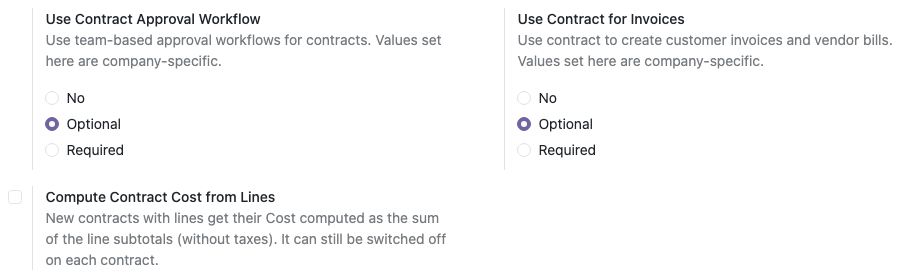
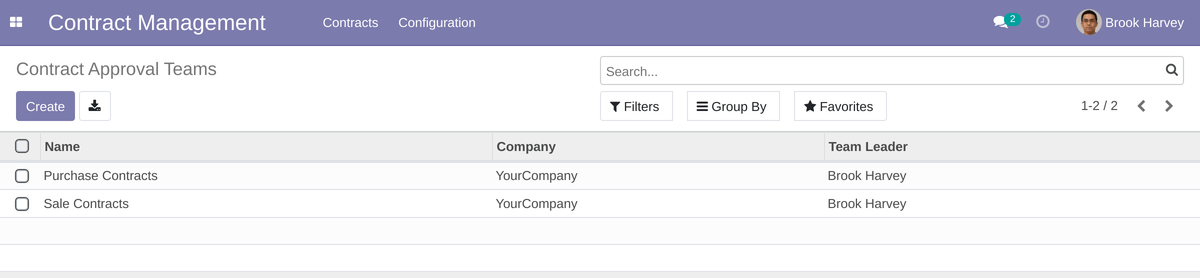
Approval Teams:
Users with role "Team Leader" can create unlimited different approval teams for each case: for example for purchase and sale contracts
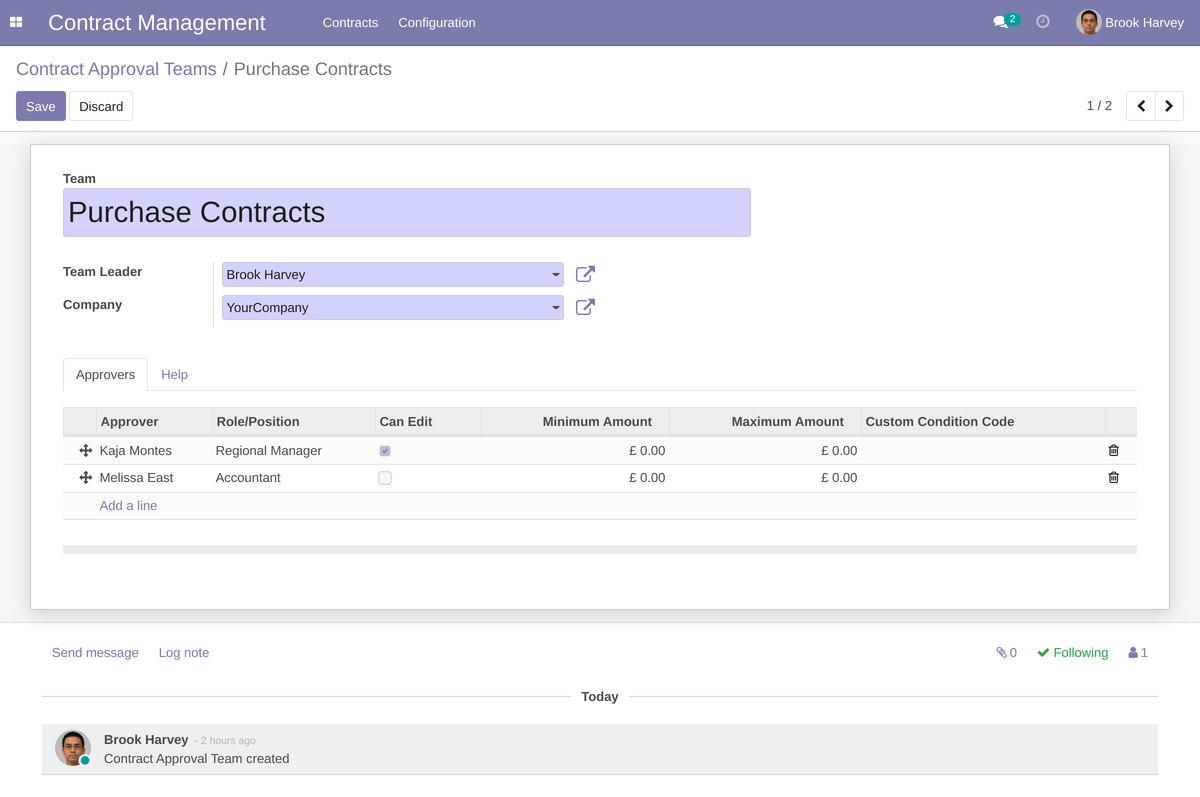
Example approval workflow for purchase contracts.
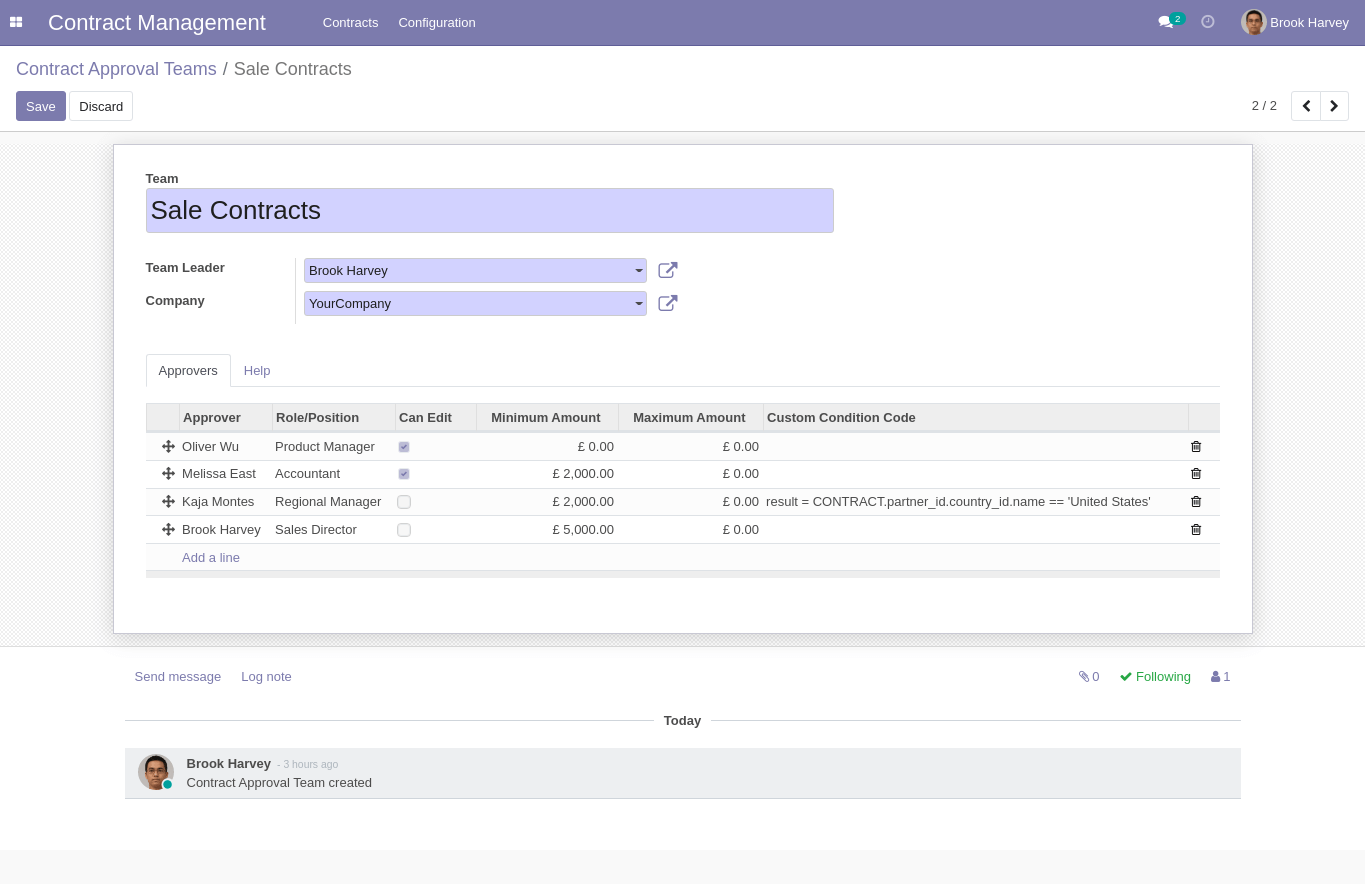
Example approval workflow for sales contracts.
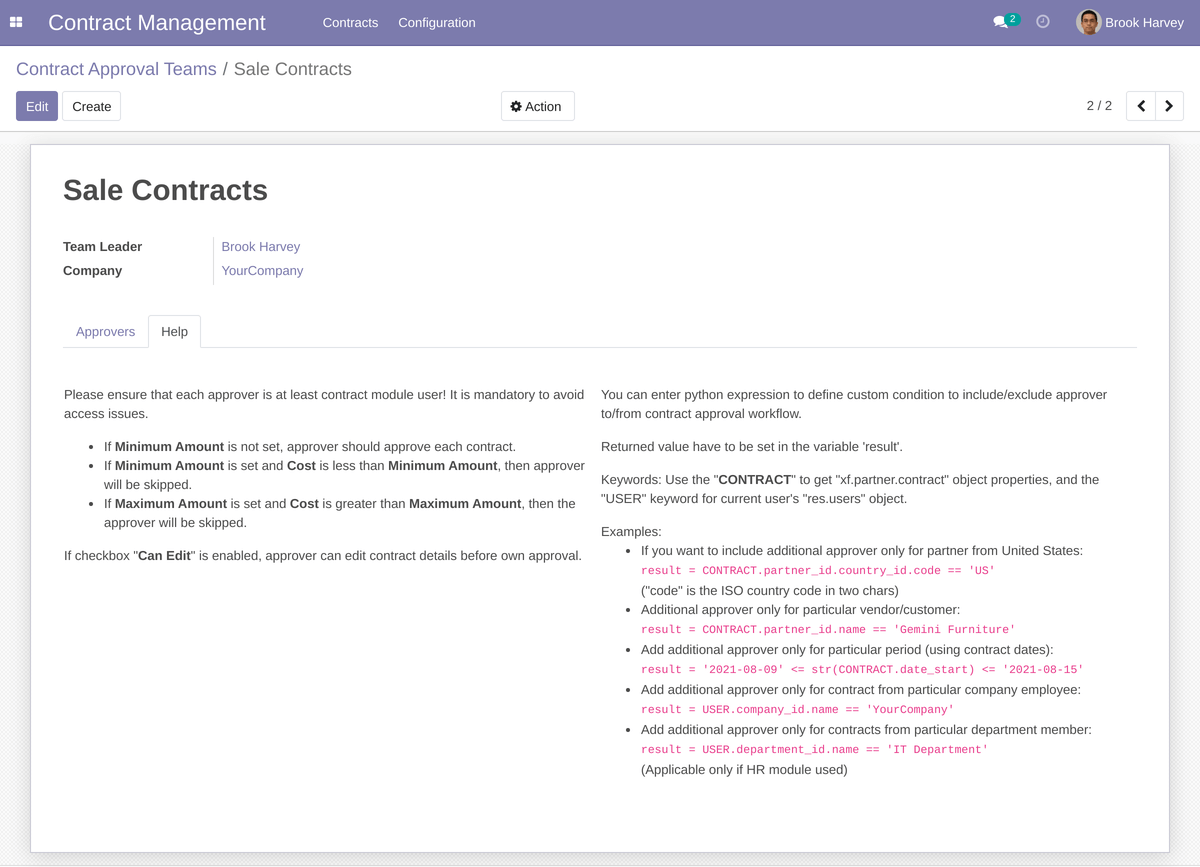
Some info for team leader to help to create approval workflows for contracts.
Contract Management:
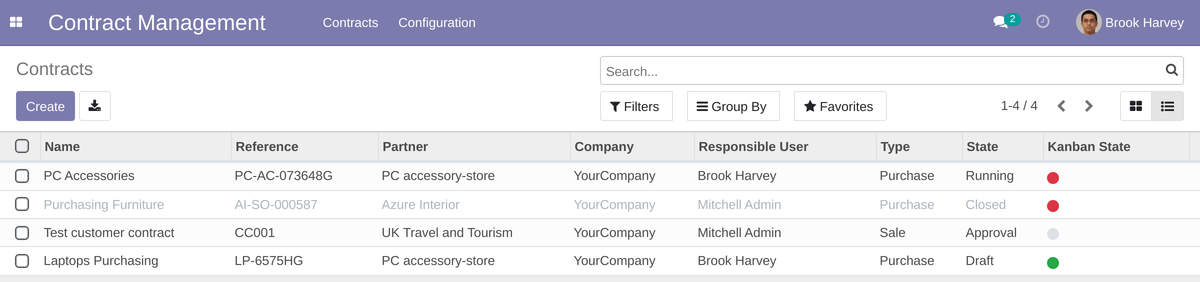
Contracts are showed as list:
or kanban view:
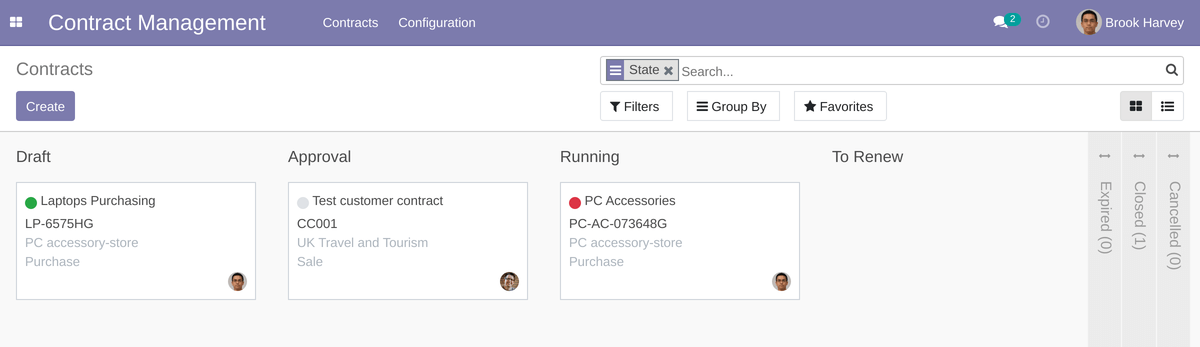
Users of the module can initiate contract and approval process.
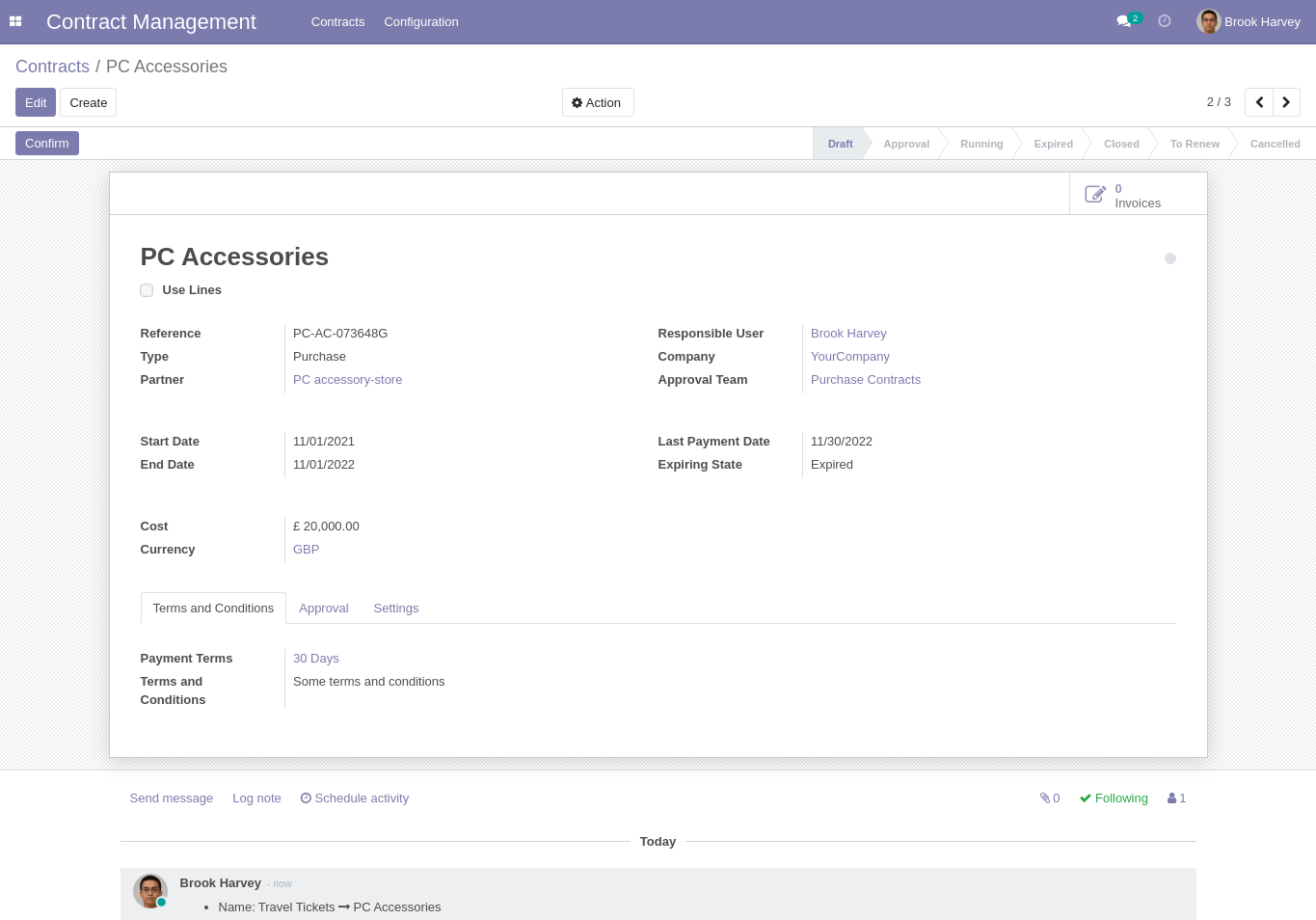
Some simple contract example:
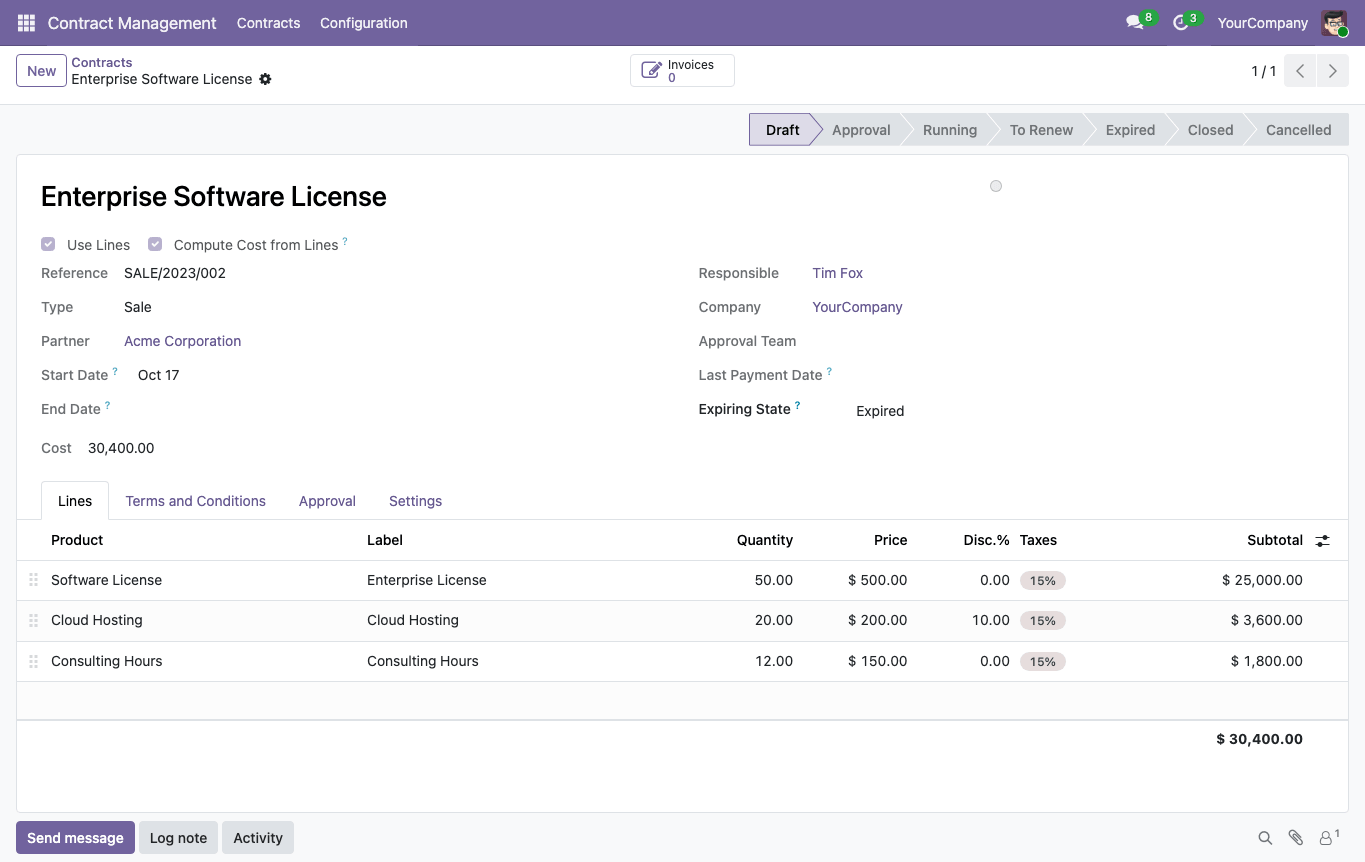
Example of contract that contains lines:
Picking a product on a line fills its label, unit of measure, taxes and unit price: the sales price from the partner pricelist on customer contracts, the vendor price on vendor contracts. Each line shows its subtotal (quantity × price minus the discount, without taxes), and its total with taxes is an optional column. With "Compute Cost from Lines" ticked, the contract Cost is the sum of the line subtotals and the approval route is chosen by it; untick it to enter the Cost manually. The default of that checkbox for new contracts is set in the module settings.
After click to the "Confirm" button the system sends notification for approvers and contract goes to the "Approval" stage.
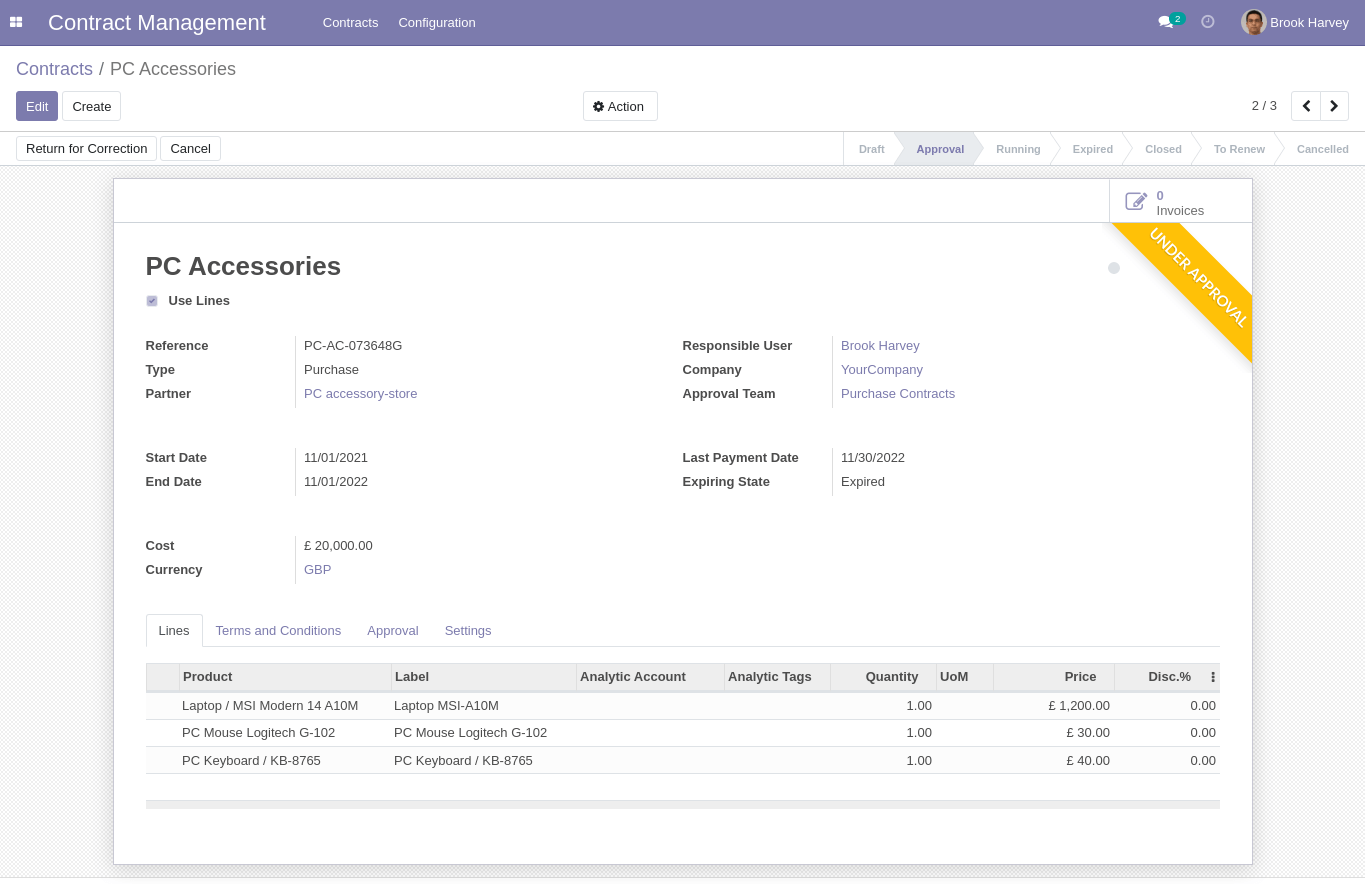
Contract Approval Process:
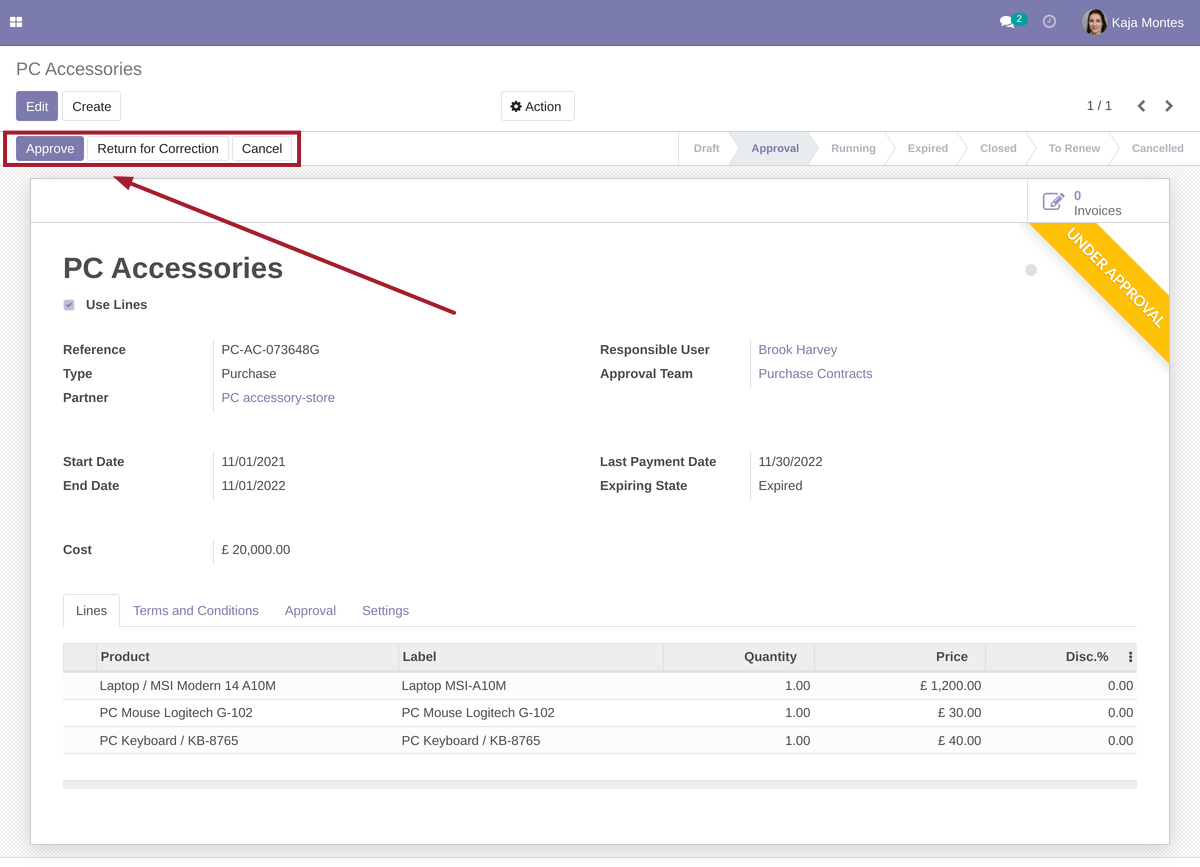
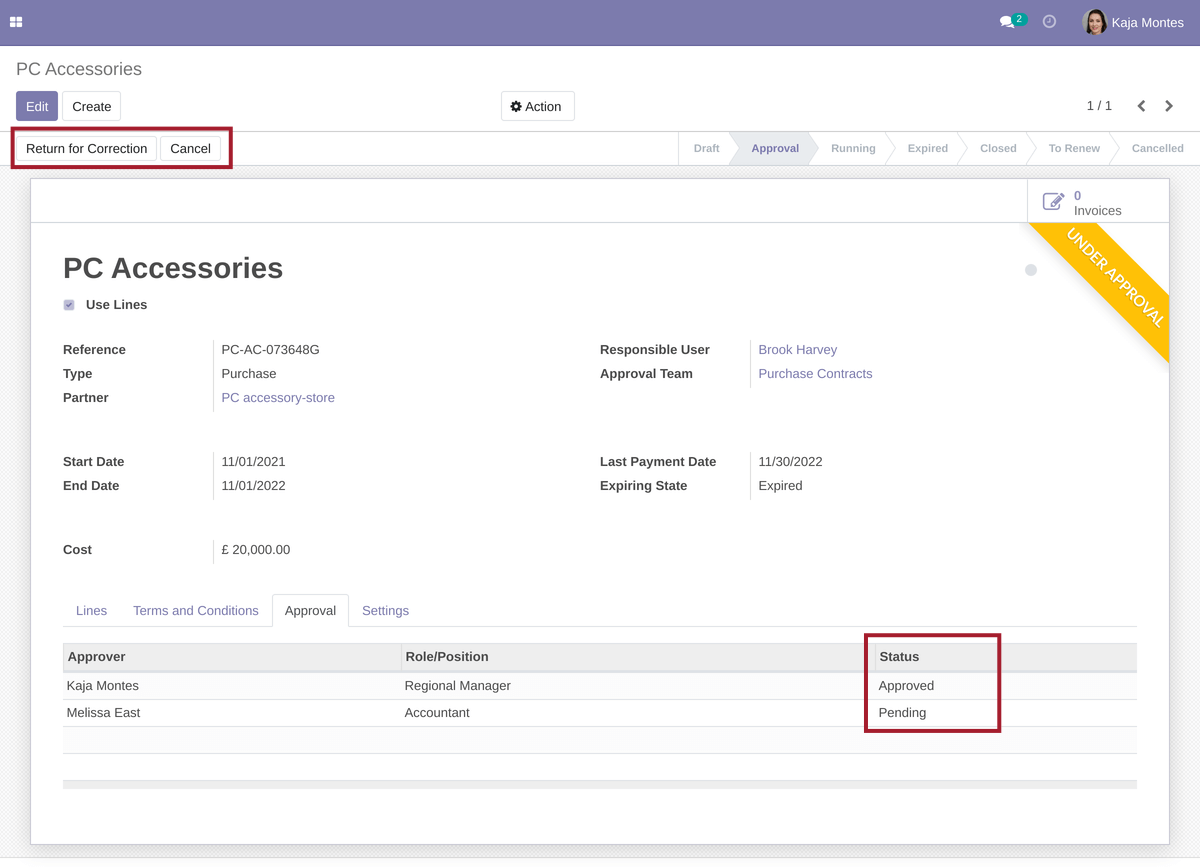
When document is waiting approval from particular user, the user sees the "Approve" and "Return for Correction" buttons
If approver wants to return document for correction he/she can do it by clicking the "Return for Correction" button and entering comments with reason.
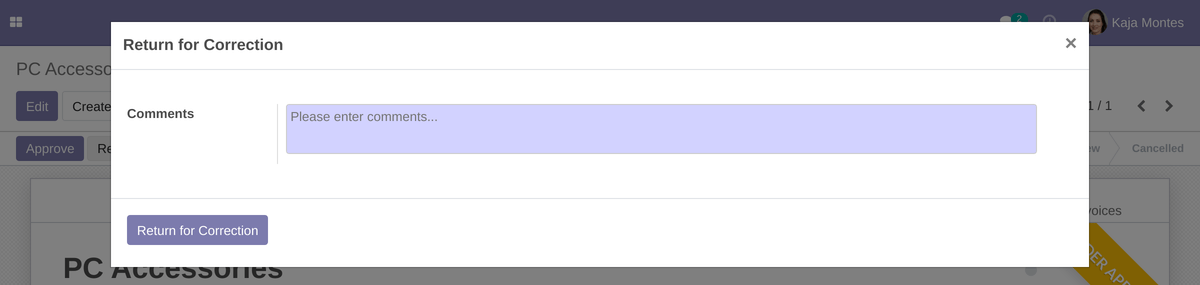
If approver return document, responsible person receives notification and can make corrections.
If approver approves contract, the document goes to next approval stage:
Current approvers have the "Pending" status in the "Approvers" tab.
When contract is fully approved the status becomes as "Running" and responsible person and followers receive notification about that.
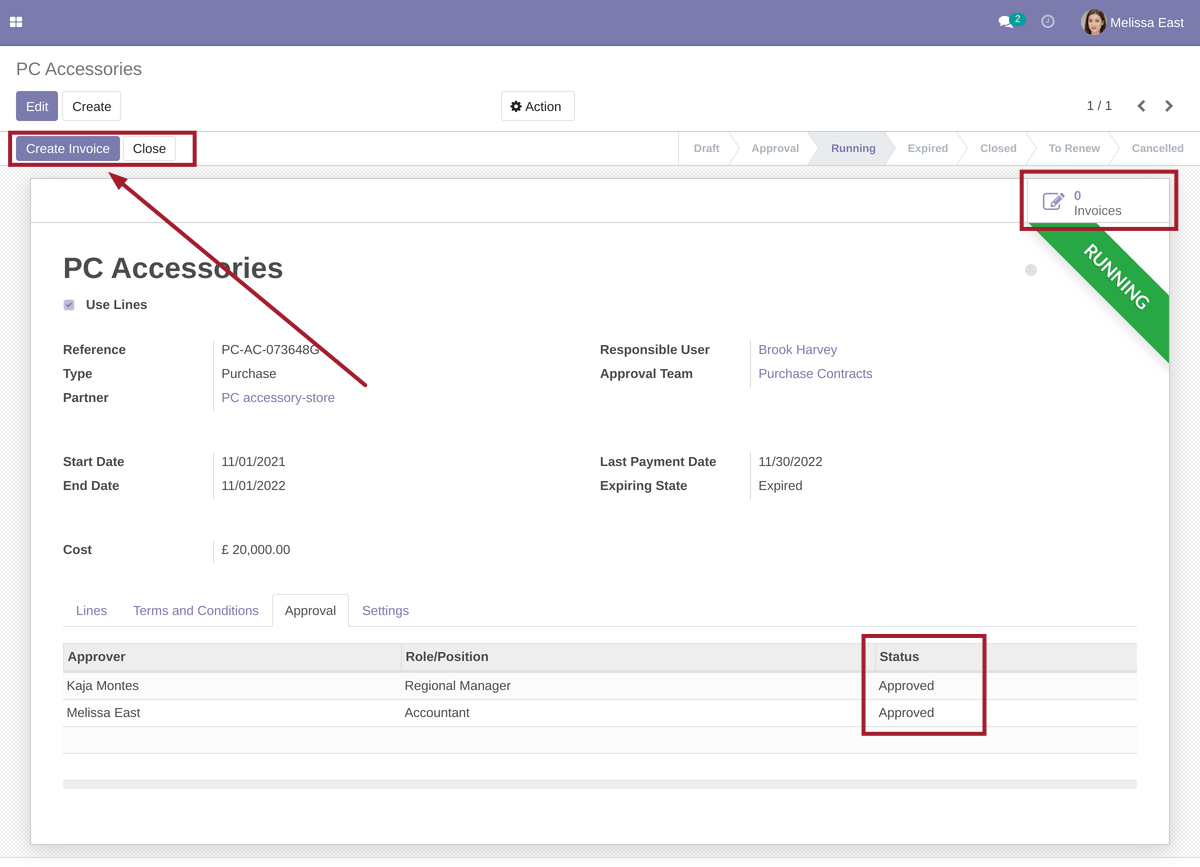
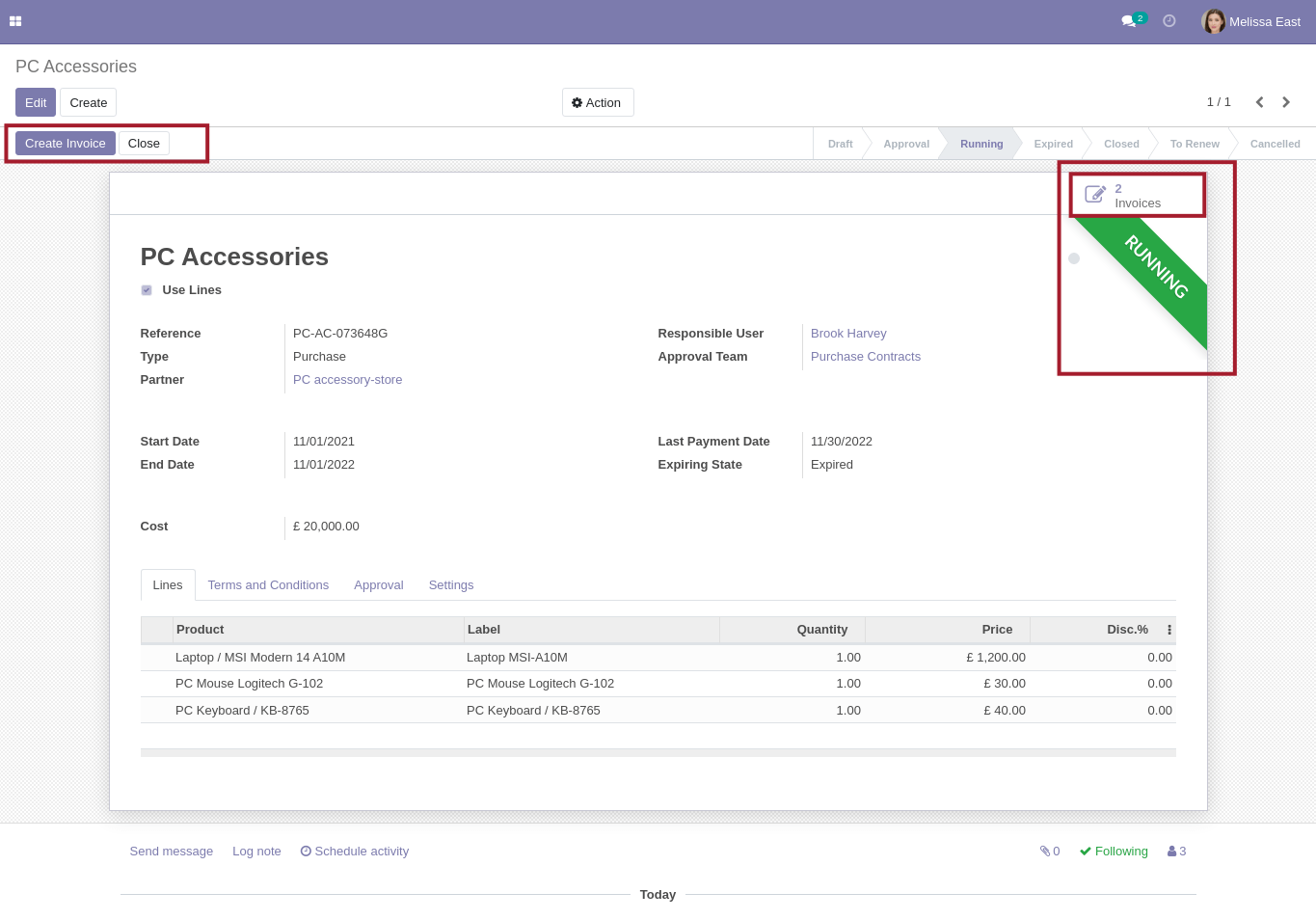
After approval users can create customer invoices or vendor bills depending on contract type.
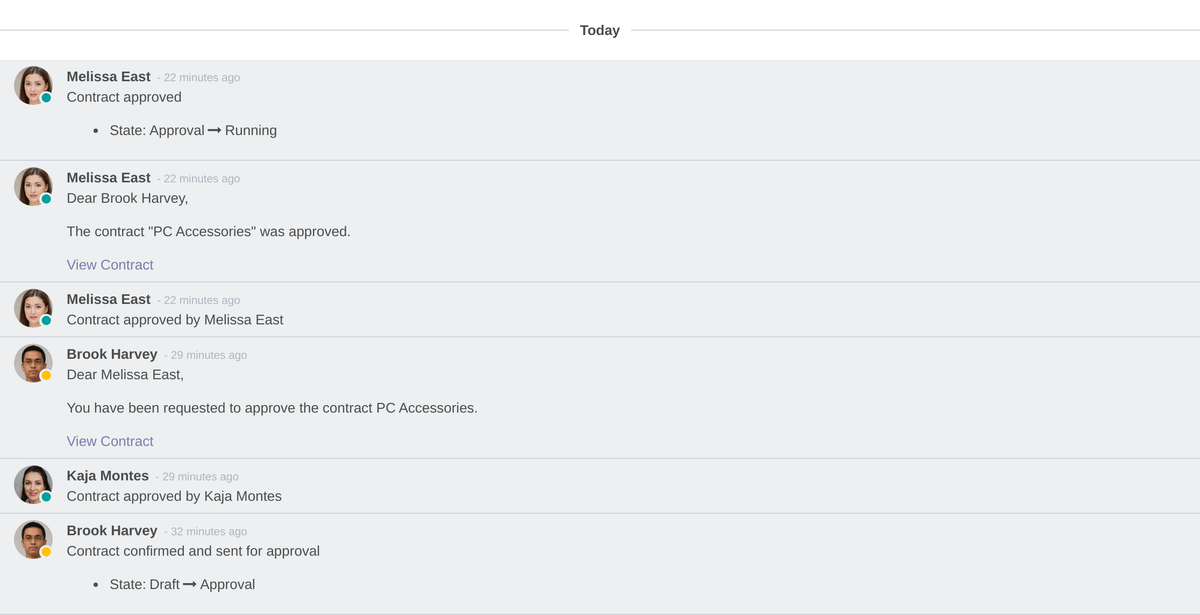
All changes are logged in the bottom:
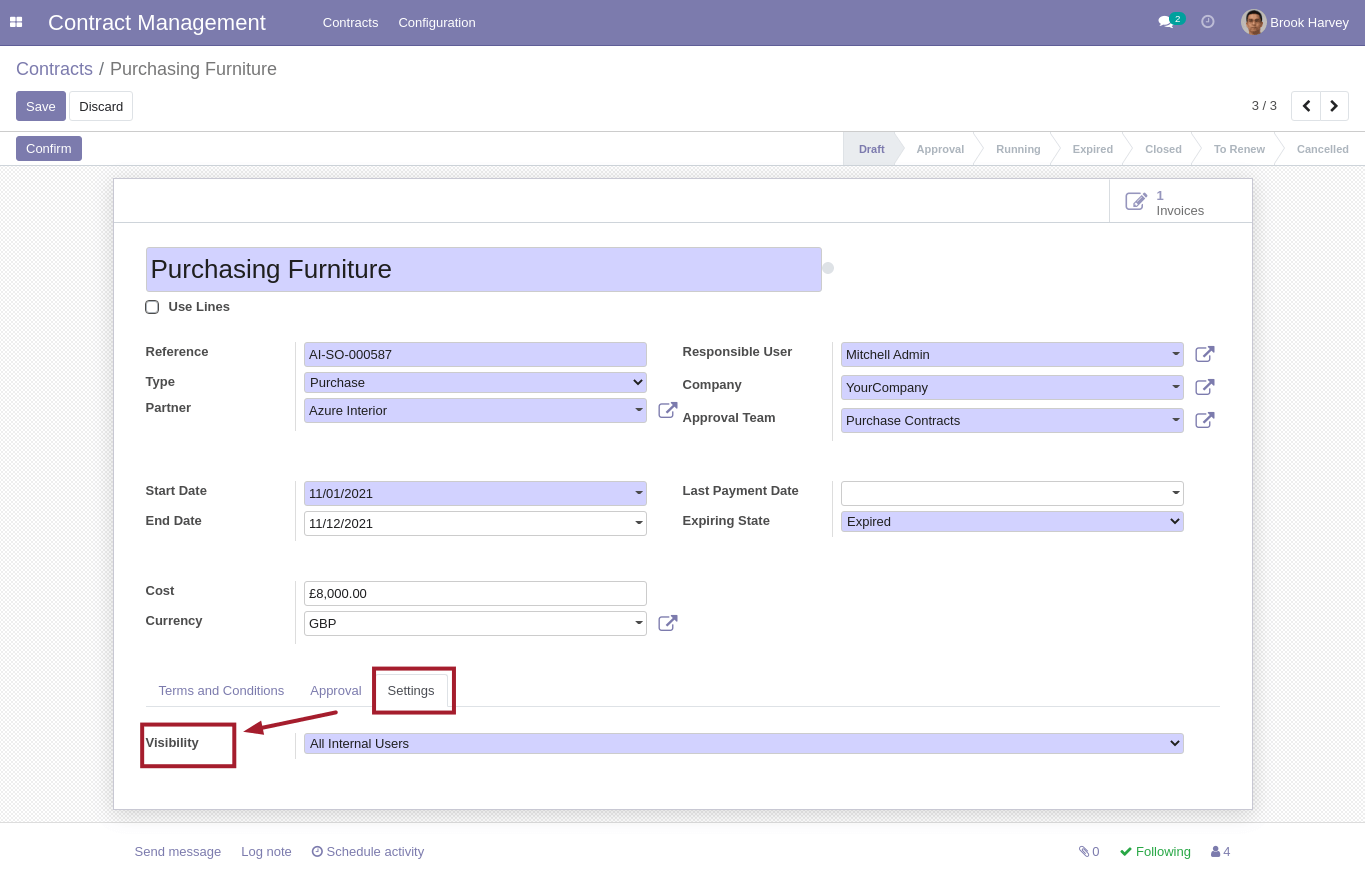
Responsible user or approval team members can change visibility of contract to make it available for all users or only for followers
Each day system checks and updates states of contracts using "End Date" and "Last Payment Date".
One week before the expiration contract is blocked and marked as red. An activity is scheduled for responsible person.

User can close contract or mark to renew. After renewal contract should be approved again.
Contract to Invoice:
Each contract can help create invoices more quickly just by clicking the "Create Invoice" button:
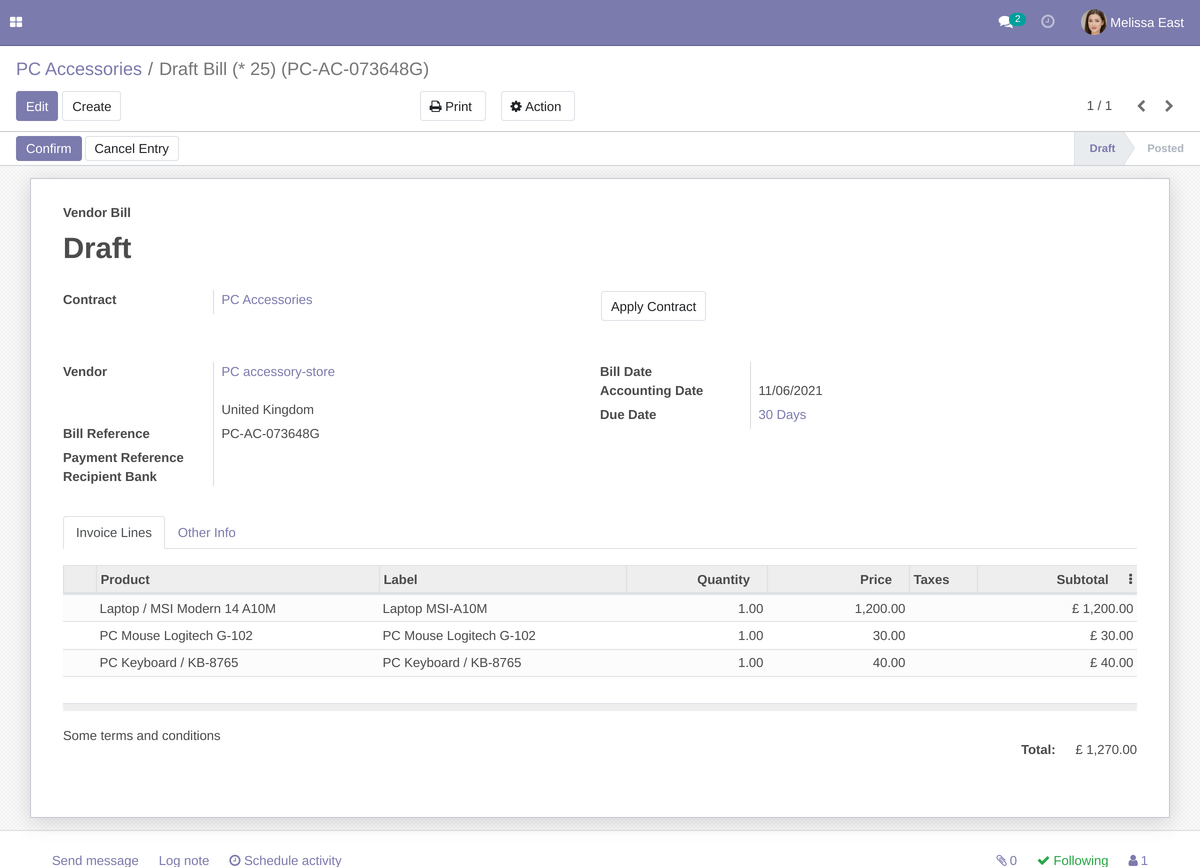
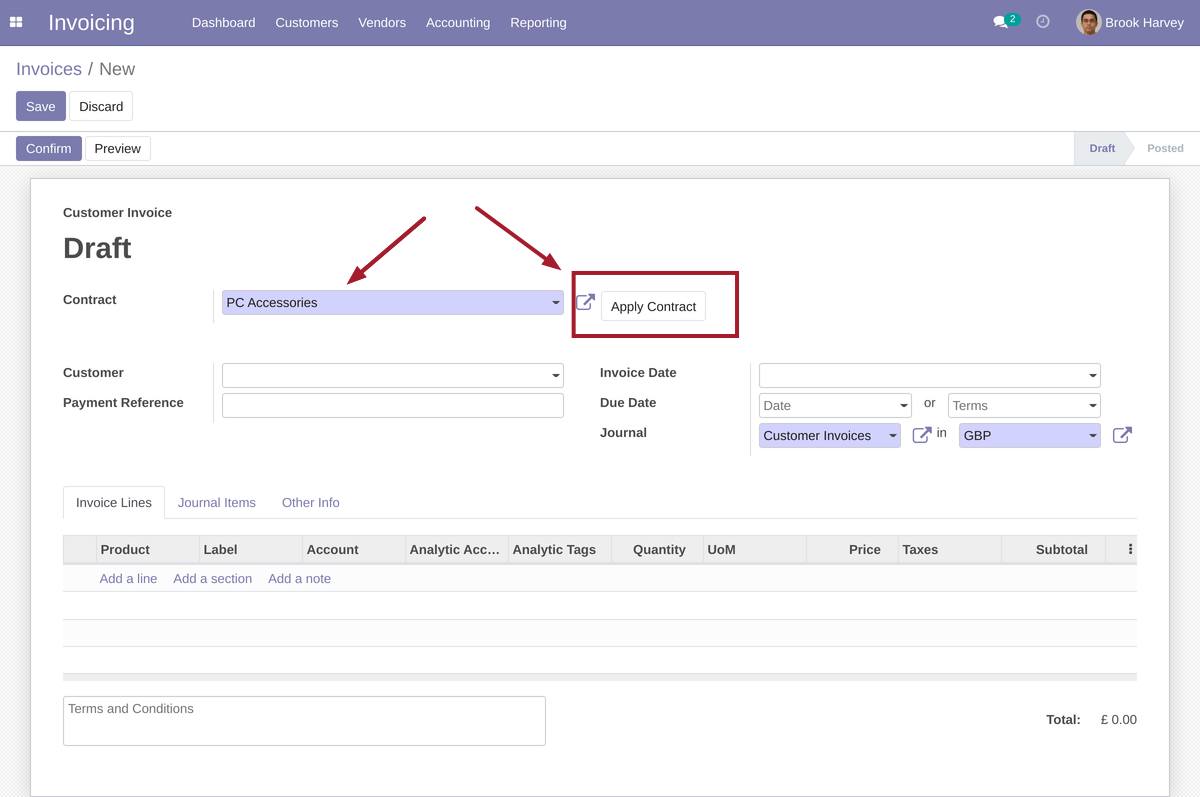
Also you can apply contract throughout invoice form:
Before:
After:
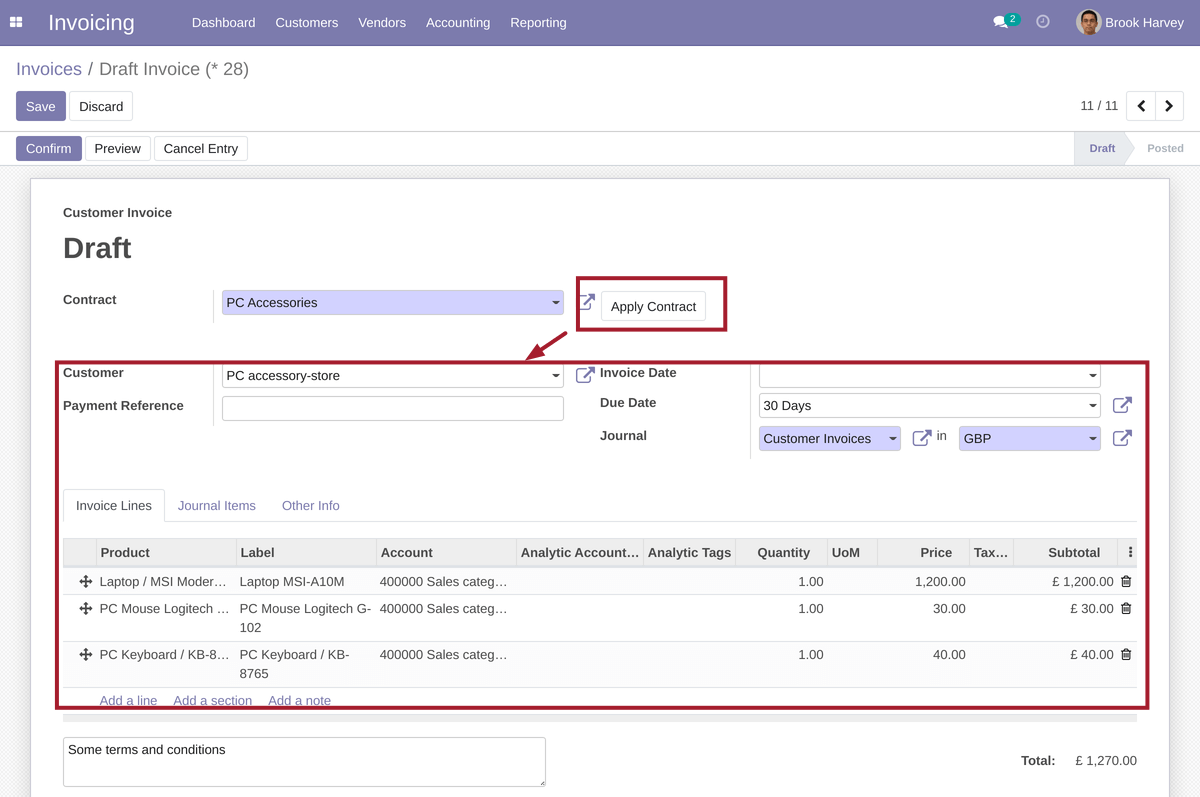
Thus you can use contracts as template for new invoices.
Please note that to send email notifications to approvers an outgoing email server should be configured.
If your Mail Transfer Agent (MTA) supports SRS (Sender Rewriting Scheme), your users can send and receive notification. However, that is more complex and requires more technical knowledge.
Instead, you can install additional module to Replace "Email From" and "Reply To" parameters of outgoing emails.
Want to know when this module gets a new version or fixes? Subscribe to updates (one email to sales@xfanis.dev, no spam).